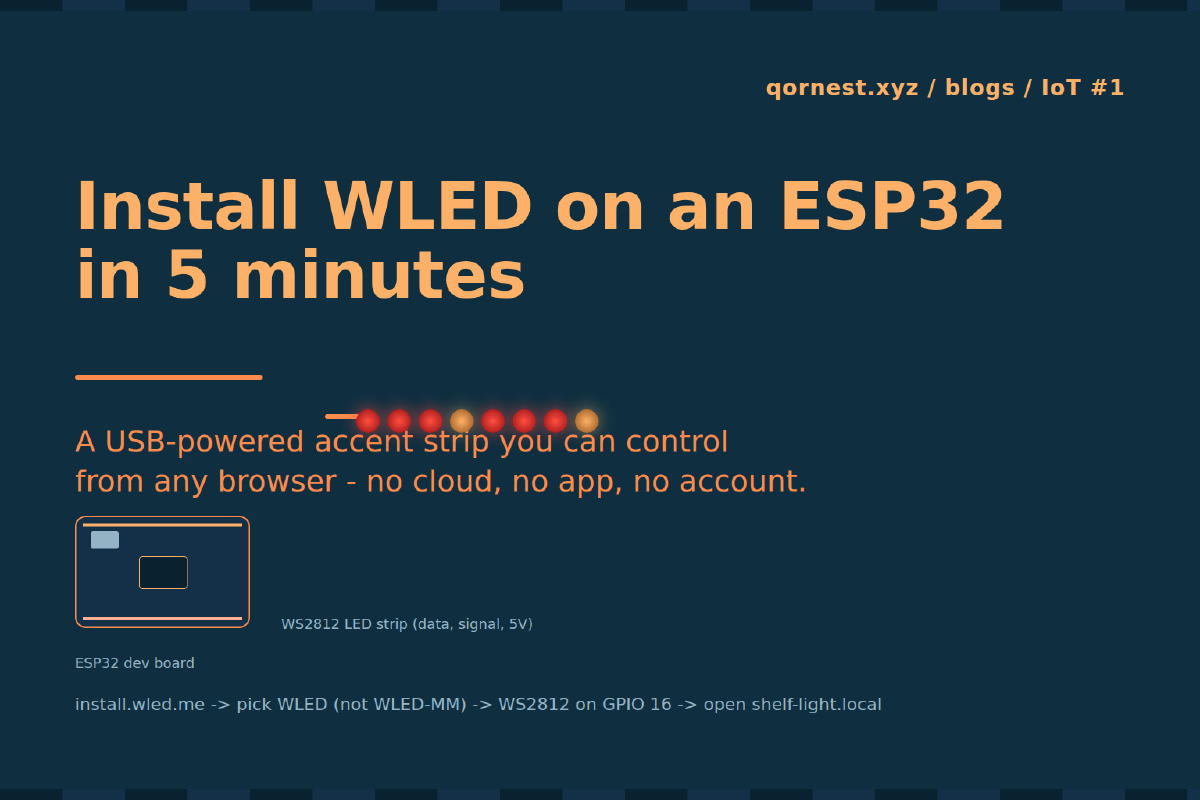
Every room ends up with a corner that wants a bit of light: a shelf, the back of a monitor, the underside of a cabinet. Commercial smart strips solve this with a vendor app, a cloud account, and a hub you did not ask for. An ESP32 devkit, a WS2812 strip and WLED do it with no cloud and no app, for the price of a takeaway lunch. You get a web UI on your own network, a JSON API you can script, and native Home Assistant discovery if you want it later. This post goes from bare parts to a strip you control by name from the command line, and covers the four things that usually go wrong along the way.
Step 1: The parts, and why these ones#
The build is small on purpose: one microcontroller, one strip, one power supply, and two passive components.
- ESP32 devkit (any common WROOM-32 board). The ESP8266 runs WLED too, but the ESP32 has more RAM and headroom, and costs about the same.
- WS2812 strip, 5V. Use WS2812 or WS2812B, not SK6812. SK6812 is often RGBW, which needs a different LED type and color order in WLED. Pick plain RGB WS2812 for an accent light.
- 5V power supply sized from the math in Step 2.
- 330 ohm resistor in series on the data line.
- 1000 uF electrolytic capacitor across the strip’s 5V and GND at the input end.
The resistor damps ringing on the data line. The capacitor absorbs the inrush when the supply first sees a few amps of LEDs turning on at once. Both are cheap, and leaving them out produces intermittent faults that are tedious to trace.
Step 2: Power math before you plug anything in#
At full white, a WS2812 pixel draws about 60 mA: roughly 20 mA for each of red, green and blue. Multiply that by the pixel count and you have your worst case:
pixels x 60 mA = worst-case current
  8 x 60 mA =  480 mA   -> fits a USB 2.0 port (500 mA)
 30 x 60 mA = 1.8 A     -> external 5V supply
 60 x 60 mA = 3.6 A     -> external 5V supply, 5 A rated
A USB 2.0 port supplies about 500 mA, and the ESP32 needs part of that for itself. So about 8 LEDs is the ceiling for USB power, and even that is close to the limit. Anything longer needs an external 5V supply that feeds the strip directly, with the ESP32 sharing its ground. Size the supply about 20% above the worst case, so a 60-pixel strip gets a 5 A unit.
In practice an accent light almost never runs at full white, and WLED has a current limiter you will set in Step 7. The limiter is a safety net, though. Size the supply for the worst case anyway.
Step 3: Wire it#
The data line goes from GPIO 16 to the strip’s DIN pad through the 330 ohm resistor. GPIO 16 is the pin most WLED wiring examples use on ESP32 devkits, so the guides you find later will match your build. GPIO 2 also works.
5V PSU (+) ---+---------------- Strip 5V
             +-- ESP32 VIN  (only when not powered by USB)

5V PSU (-) ---+---------------- Strip GND
             +-- ESP32 GND          <- common ground, not optional

ESP32 GPIO16 --- 330 ohm --------- Strip DIN   (follow the arrow on the strip)

1000 uF cap across Strip 5V / GND, at the input end, mind polarity
Three rules matter here.
Common ground is mandatory. The data signal is measured relative to ground. If the ESP32 and the strip do not share one, the strip sees noise and shows random colors or nothing.
Follow the arrow. WS2812 strips are directional. Data goes into DIN and out of DOUT. If you wire the wrong end, nothing lights and nothing tells you why.
Never feed USB and VIN from two supplies at the same time. Pick one. For external-PSU builds, power the ESP32 from the 5V rail through VIN and unplug the USB cable after flashing.
WROVER caveat: on ESP32 WROVER modules, GPIO 16 and 17 are wired to the PSRAM chip and are not usable. If your board says WROVER, use GPIO 2 instead.
Step 4: The 3.3V-into-5V question#
The ESP32 drives its GPIOs at 3.3V. A WS2812 powered at 5V specifies its input-high threshold as 0.7 x VDD, which is 3.5V. On paper a 3.3V signal falls short of that threshold.
In practice it nearly always works for short builds. Real parts switch well below the datasheet’s guaranteed value, the first pixel regenerates the signal at full 5V for every pixel after it, and a data wire of a few centimeters adds little degradation. That covers most accent-light builds, where the ESP32 sits right next to the strip.
It stops working when the data run gets long (tens of centimeters or more), when the supply runs a little above 5V, or when the strip comes from a batch with a stricter threshold. The symptom is flicker or wrong colors on the first pixels, which looks like a firmware problem but is not.
The robust fix is a 74AHCT125 (or 74HCT245) level shifter, powered from 5V, between GPIO 16 and the resistor. It costs very little and removes the question entirely. If your strip works without one, fine. If you see first-pixel glitches, add the shifter before you spend time on anything else.
Step 5: Flash WLED from the browser#
No toolchain is needed. Plug the ESP32 into your machine over USB, then open install.wled.me in Chrome or Edge. The installer uses Web Serial, which Firefox and Safari do not support.
- Pick the latest stable WLED release, the standard ESP32 build.
- Click Install, choose the serial port, and allow it to erase the device when it asks.
- Wait about a minute for the flash and verify to finish.
If no serial port appears, your board’s USB-to-serial chip needs a driver. Most devkits use a CP2102 or a CH340. On Linux both drivers are in the kernel, but your user needs access to the serial port:
ls -l /dev/ttyUSB*            # should list /dev/ttyUSB0
# add your user to the dialout group to access the serial port
WLED or WLED-MM? WLED-MM (MoonModules) is a fork aimed at large matrices, audio-reactive setups and heavier effects. It is good at that, but it is the wrong default for a single accent strip. You would be on a fork with its own release cadence and settings layout, and most guides, forum answers and Home Assistant examples assume upstream WLED. Use upstream unless you hit a limit that the fork specifically removes.
Step 6: Join Wi-Fi#
On first boot with no Wi-Fi configured, WLED starts its own access point, WLED-AP, with the default password wled1234. Connect to it from a phone or laptop. The captive portal usually opens on its own; if not, the WLED docs list the address to browse to.
Go to Config -> WiFi Setup and enter:
- Your network’s SSID and password.
- An mDNS address. The default is
wled-followed by part of the MAC address. Change it to something meaningful, such asshelf-light, and the device becomesshelf-light.local. - Leave the static IP fields empty unless you have a reason not to. A DHCP reservation on the router does the same job without hard-coding it on the device.
Save. The ESP32 reboots, joins your network, and the access point disappears.
Put it on your IoT network, not on the segment your laptops use. WLED has no login on its web UI. Anyone who can reach it can change it, and that is fine only if the set of people who can reach it is small.
Step 7: Tell WLED what is attached#
WLED does not detect the strip. You have to describe it. Go to Config -> LED Preferences:
| Setting | Value |
|---|---|
| LED type | WS281x |
| Color order | GRB (the WS2812 default) |
| Length | your pixel count |
| Data GPIO | 16 |
| Automatic brightness limiter | enabled |
| Maximum PSU current | your supply’s rating minus ~20%, in mA |
Save, then go back to the main page and pick a solid color. If the colors are swapped (red shows as green), the color order is wrong; try RGB. If only part of the strip lights, the length is wrong. If nothing lights, check common ground, the arrow direction, and the GPIO number, in that order.
The brightness limiter is what makes the power budget from Step 2 hold. WLED estimates the current for every frame and dims the output to stay under the cap. It is an estimate, not a measurement, so treat it as a second line of defense, not a reason to buy a smaller supply.
Step 8: Reach it by name on Linux#
On macOS and most Windows installs, shelf-light.local resolves straight away. On Linux it often does not, because .local names need an mDNS resolver that minimal installs and many servers do not ship:
ping -c1 shelf-light.local
# ping: shelf-light.local: Name or service not known
Install Avahi and the NSS module that connects it to the system resolver:
# Debian / Ubuntu
apt install avahi-daemon libnss-mdns
systemctl enable --now avahi-daemon

# Fedora
dnf install avahi nss-mdns
systemctl enable --now avahi-daemon
Check that the nsswitch hosts line has mdns4_minimal before dns. The packages usually add it, but some distros leave it out:
hosts: files mdns4_minimal [NOTFOUND=return] dnsThen confirm discovery works. WLED advertises its own service type:
avahi-browse -rt _wled._tcpIf the browse finds the device but ping still fails, the problem is the nsswitch hosts line. If the browse finds nothing, multicast is not crossing between your machine and the device. That is common when the light sits on an IoT network and your laptop does not. You then need an mDNS reflector on the router, or a DNS record that points at the device’s DHCP reservation.
Step 9: Drive it from the command line#
The web UI is fine for picking colors. The JSON API is what makes the light scriptable. WLED’s API listens on the standard port. The read endpoint is json/info:
curl -s shelf-light.local/json/info | jq '{ver, leds: .leds.count, name}'Then set the state. The write endpoint is json/state. This turns the strip on at half brightness in a warm white:
curl -s -X POST shelf-light.local/json/state \
  -H 'Content-Type: application/json' \
  -d '{"on":true,"bri":128,"seg":[{"col":[[255, 160, 60]]}]}'
And off again:
curl -s -X POST shelf-light.local/json/state \
  -H 'Content-Type: application/json' -d '{"on":false}'
bri runs from 0 to 255. col is a list of up to three colors per segment (primary, secondary, tertiary), each written as [R,G,B]. Anything that can send an HTTP POST can now drive the light: a cron job, a shell alias, a script that changes color when a build fails. Save the states you use often as presets in the UI, then recall them with {"ps":1} instead of repeating the full payload.
Step 10: Lock down what can be locked#
WLED’s web UI has no authentication. That is by design, and it is why the network placement in Step 6 matters. Two settings under Config -> Security and Updates are still worth turning on:
- Settings PIN. Protects the configuration pages, so a visitor on the network can change colors but cannot rename the device or point it at another network.
- OTA lock. Requires a password before new firmware can be uploaded over the network. Without it, anyone who can reach the device can flash whatever they want onto it.
Neither one turns WLED into an authenticated service. They raise the effort from “open a browser” to “know a secret”, which is the right level of control for a shelf light.
Pitfalls, in the order you will hit them#
- No serial port in the installer: wrong browser (use Chrome or Edge), a charge-only USB cable, or your user not being in the
dialoutgroup on Linux. - Nothing lights: common ground, arrow direction, then the GPIO number. On WROVER boards GPIO 16 is taken by PSRAM.
- First pixels flicker or show wrong colors: a 3.3V data line at the edge of the WS2812 threshold. Add a 74AHCT125.
- The strip browns out or the ESP32 resets on white: you are over the power budget. Use a bigger supply or a lower current limit.
.localdoes not resolve on Linux: installavahi-daemonandlibnss-mdns, then check the nsswitch hosts line.- It works from the phone but not the laptop: the two are on different network segments and mDNS does not cross between them.
What this does not buy you#
You get a self-contained, cloud-free light with a web UI and an API, built from about a dozen parts. What you do not get:
- It is a per-device web UI. That is fine for one room. Ten controllers means ten bookmarks and ten UIs. WLED can sync groups of devices over UDP, but that is not whole-house control without more work.
- Cross-room scenes need a real hub. “Evening” across the living room, the hallway and the office means Home Assistant, which discovers WLED automatically and treats each controller as a light entity. WLED is a good endpoint, not a coordinator.
- Wi-Fi coverage becomes your problem. A controller in a ceiling cove or behind a metal cabinet sits at the edge of coverage, and an ESP32’s PCB antenna is not generous. Check signal strength in Info before closing up the enclosure. If it reads below about -75 dBm, move the controller, use a board with an external antenna connector, or add an access point. A light that drops off Wi-Fi keeps its last state and ignores everything you send it.
Recommendation: build the first strip exactly as written here (upstream WLED, GPIO 16, a 74AHCT125 in place from the start, current limiter on, IoT network). Once you have more than two of these, set up Home Assistant before you build a third.